To force visitors to use https when visiting your site, do the following:
- Login to the Plesk control panel
- You can login via the client area -> Services menu -> My services and then click on your hosting account in the services list
- Or you can login directly if you bookmarked / saved the control panel's address
- Either enable "Let's Encrypt" security certificate for the domain or install an existing SSL via the "SSL / Certificates" page in Plesk.
- Let's Encrypt is enabled via the "Let's Encrypt" icon on the "Websites and domains' page in Plesk
- Either Let's encrypt or a purchased certificate is required
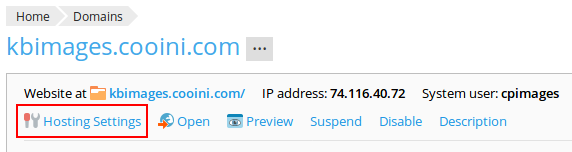
- Once you have SSL / TLS setup, go to "Hosting Settings" on the "Websites and domains" page in Plesk
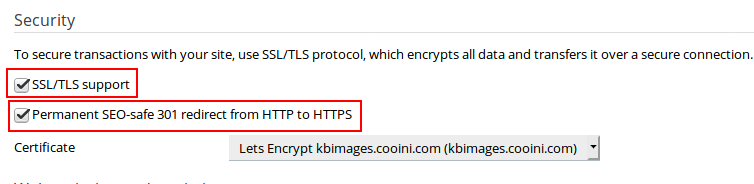
- On the Hosting Settings page, find the "Permanent SEO-safe 301 redirect from HTTP to HTTPS" checkbox and check it as well as the "SSL / TLS Support" checkbox
- Click "OK" at the bottom of the page to save settings and wait a few minutes for the changes to take load
At this point, your site should redirect to https:// when you only enter http://.
NOTE: if you use http:// for any image, javascript, style sheet, or other supporting files you will need to update their source (src) property to use https:// instead. This also includes any external from your site files. If not done, browsers will alert for "mix content" because all requests on a https site need to go over https and those files are a request of their own.