Changing a mailbox password in Directadmin is easy and quick to do.
- Login to your DirectAdmin panel - it is usually best to login via our billing system at https://clients.cooini.com
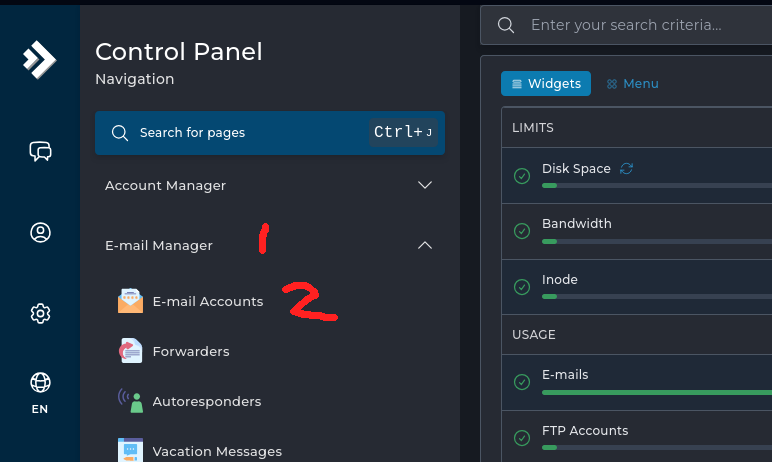
- Go to Email Manager -> Email accounts on the left menu
- On the Email accounts list, find the mailbox you want to change the password for
- Click the 3 dot ("...") menu to the right of the mailbox address
- Under the 3 dot menu, click "Change Username / Password"

- On the pop up dialog, enter the new password in the password field
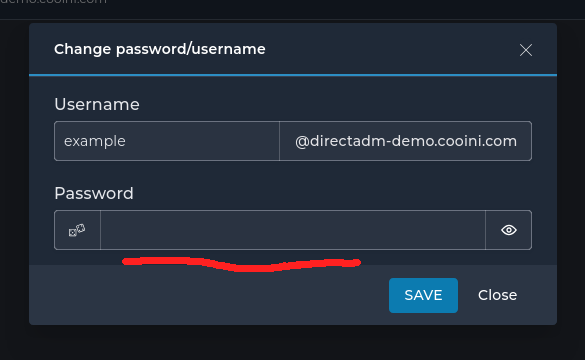
- Click "Save" button to save the new password
The mailbox password has now been updated.
Mail clients will ask for the new password on their next mail check. You can also do a manual mail check for the mail client to prompt for the password.